Creator workflow
How to plan vidnoz for youtube videos
A YouTube idea needs more than a script: it needs a clear opening, visuals that support the narration, and a final review before publishing. Use this guide to shape a creator brief, compare three workflows, and check the finished video against your channel’s standards.
This is a planning brief, not a submitted video prompt. Copy it before opening Vidione, a separate editor; nothing typed here is sent there. Sign-in is required. Importing, trimming, captioning and exporting one source video does not require a paid plan; generating new video does require a paid plan and credits. Join separate videos and add exported title cards in another editor.
Why YouTube production gets stuck
The hard part is often turning a useful idea into a sequence viewers can follow—not merely putting words on screen.
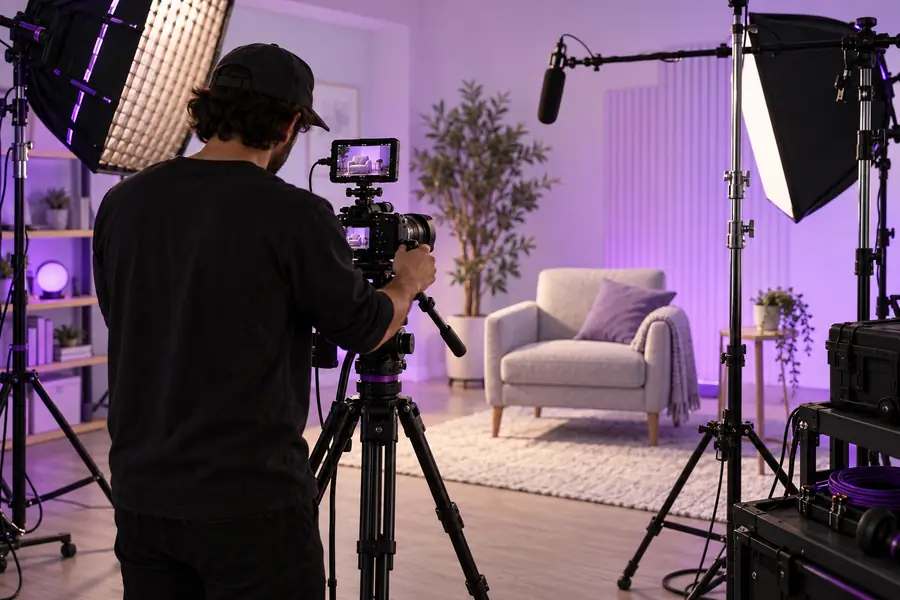
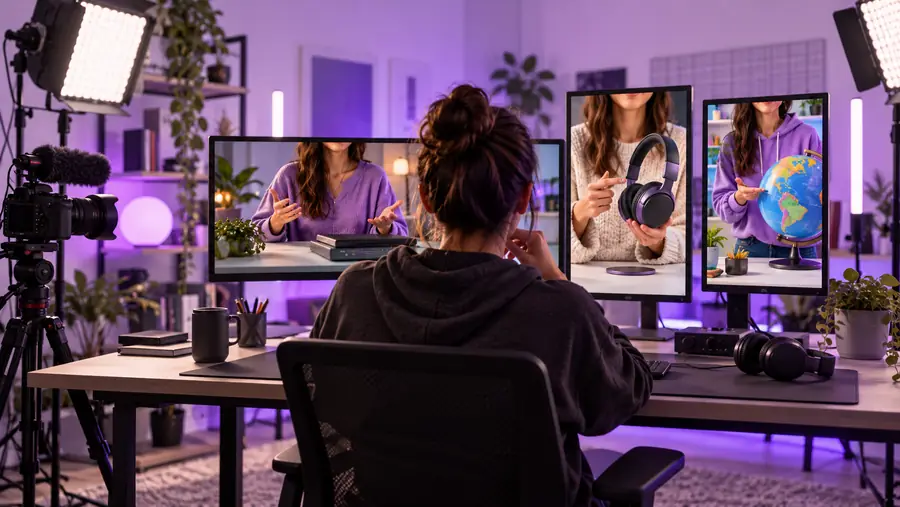
These images illustrate a planning contrast, not a verified transformation or a clip produced by the linked service. When considering vidnoz for youtube, start with the viewer’s question and the footage or graphics needed to answer it. A polished presenter cannot rescue an unsupported claim, a slow opening, or visuals that repeat the narration without adding information. Write the takeaway first, then decide whether a presenter, screen recording, or product footage best carries each point.
Unstructured productionPlanned presentationThree concrete YouTube workflows
Pick the workflow that fits what your audience needs to see. Each one starts with a brief and ends with a human review.
| Creator brief | Finished-video check | |
|---|---|---|
| Explainer · opening | State one question and promise a specific answer in the first sentence. List the three points that answer it. | The opening makes sense without a thumbnail, and every point advances the promised answer. |
| Explainer · visuals | Assign a diagram, demonstration, or cited example to each point before drafting narration. | Visuals clarify the explanation rather than serving as decorative background. |
| Tutorial · sequence | Write the starting condition, each action in order, and the result a viewer should observe. | A viewer can pause after any step and find the same control or result on their own screen. |
| Tutorial · verification | Capture the current interface and note where settings or results may vary. | Show actual interface steps in the source recording. Add any essential title cards in another editor; Vidione's arbitrary text preview does not carry through to its video export. |
| Channel update · message | Choose one announcement, its date or context, and the action viewers should take. | The announcement is understandable to a returning viewer who has missed earlier updates. |
| Channel update · finish | Plan a short recap and a relevant next-watch suggestion, without repeating the full announcement. | The ending gives viewers a clear next step and does not imply an unavailable feature or offer. |
Example output: a short explainer
The panels below are sample outlines, not claims that a particular clip was generated. Use them to test whether your own brief has enough substance.
Short explainer
Composting in one minute
Open with a familiar problem: food scraps going into the bin. Show a simple diagram separating suitable scraps from items to avoid. Use a short demonstration to explain the balance of materials, then close with one practical first step. For Vidnoz planning, keep the spoken script separate from visual directions so you can judge whether each shot earns its place.
- Opening question: What can go into a home compost bin?
- Visual beats: sorting scraps, layering materials, checking moisture.
- Review: confirm local guidance before stating disposal rules.
Screen tutorial
A setting viewers can reproduce
Begin by naming the software version and the setting the viewer will change. Show the starting screen, demonstrate each click, and pause on the resulting screen. If you use a presenter introduction, return promptly to the interface; viewers came for the process. The sample outcome is a script and shot list ready for a creator to capture and verify, not a substitute for recording the real controls.
- Opening: name the task and expected result.
- Middle: one visible action per instruction.
- Ending: show how to confirm the change worked.
Channel update
A concise announcement
Lead with what changed and who it affects. Follow with the effective date, one concrete example, and where viewers can find authoritative details. An on-screen presenter may carry the announcement, but captions and a clear description help viewers check specifics. Before publishing, read the script aloud and remove any promise you cannot independently verify.
- Opening: state the change plainly.
- Middle: explain its effect with one example.
- Ending: direct viewers to the relevant channel information.
YouTube publishing and compliance notes
A vidnoz for youtube workflow still needs editorial checks. Use only voices, faces, music, images, and footage you have the right to use; obtain consent when depicting a real person. Check facts, names, dates, and demonstrations against reliable sources. Review captions against the final audio, and make titles and thumbnails accurately reflect the video. If realistic synthetic or altered material could mislead viewers, check YouTube’s current disclosure requirements before uploading. Policies and tool capabilities can change, so verify both at the time you publish.
Review the video before it reaches your channel
- Confirm permission for every identifiable person and third-party asset.
- Watch the complete export for errors, abrupt cuts, and caption mismatches.
- Apply current YouTube disclosure and publishing rules where relevant.
Vidnoz YouTube FAQ
Explainers, channel announcements, and brief introductions can work when spoken delivery is the main way to convey the message. A screen tutorial usually needs real interface footage as well; a presenter should not replace the steps viewers need to see.
Review the full video before uploading, regardless of how you made it. Check claims, pronunciations, visual continuity, captions, and whether you have permission to use every included asset.
Requirements depend on the content and YouTube’s current policies, particularly whether realistic altered or synthetic material could mislead viewers. Consult YouTube’s publishing guidance for your specific video rather than assuming every use has the same disclosure rule.
Write the viewer’s question, the answer you will deliver, and the evidence or demonstration for each point. Then add a hook, a shot list, narration, and a closing takeaway; revise anything that the planned visuals cannot support.